
1. Overview
A glossary for your Confluence site. Look up a word, see what it means, and find the words that matter on the page you are reading.
Every team has its own words. Not everyone knows them.
“An acronym in a project brief. The term Finance uses one way and Engineering another. A new joiner three paragraphs into a page, quietly guessing.”
Glossary gives your Confluence site one place where those words are written down — and then puts the definitions in front of people on the page they are already reading.
You do not need to be an administrator to use any of this.
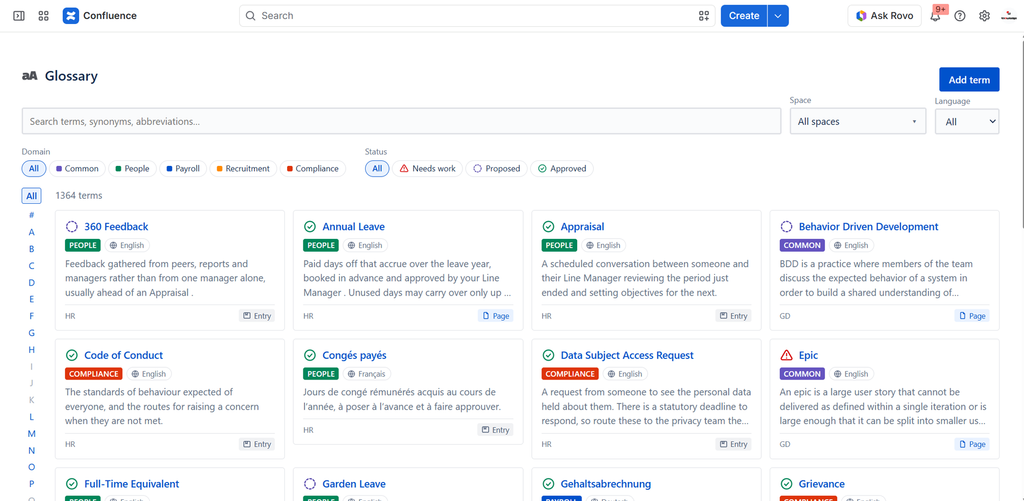
Apps → Glossary in the top menu opens your glossary. From there you can:
– Search by name, synonym, abbreviation or alternative form.
– Jump to a letter using the A–Z list down the side.
– Filter by space, domain, status or language.
Click a term to read its full definition.
Every space also has its own glossary, under Glossary in the space menu. It shows only that space’s terms.
2. See the words on a page you are reading
Four ways, depending on how much you want.
- The Glossary button at the top of the page: It tells you how many glossary words appear on this page. Click it to read them without leaving the page.
- Highlighting: Turn it on and every glossary word in the page is marked. Click a mark to read the definition.
- Select a word: Highlight any word, then choose “Look up in glossary” from the menu. If it is a term, you get the definition straight away.
- Add a list to the page: If you are editing a page, insert the “Glossary terms on this page” macro. It lists every glossary word the page uses, with definitions.
3. Create term
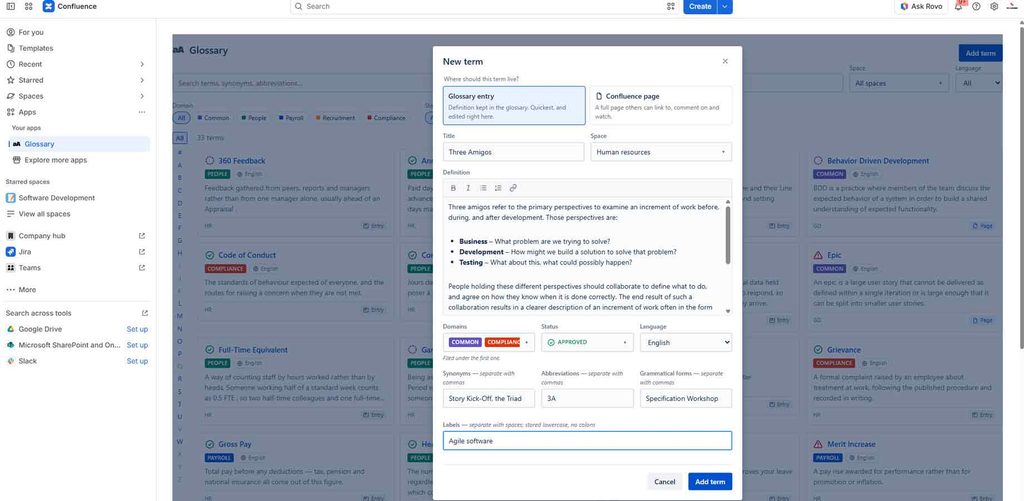
Click Add term in the glossary. Fill in the form and save.
As you type the name, the app shows you words that already exist under or near that name, including ones that have it as a synonym. It suggests — it never stops you. Two teams can define *Order* differently on purpose.
3.1. Two kinds of term
You choose inside the form:
- Glossary entry: Just a word and its meaning. No page. Best for most terms.
- Confluence page: Creates a page for the term, so you can add images, tables and links. Best when we need to inherit the power of the Confluence page – comments, like, etc.
3.2. The form
| Field | What to put in it |
| Name | The word itself. |
| Space | Which space the term belongs to. |
| Definition | What it means. You can use bold, italics, lists and links. |
| Domain | The subject area — Finance, Legal, and so on. |
| Status | Where the word is in your review process. |
| Language | The language the definition is written in. |
| Synonyms | Other words that mean the same thing. |
| Abbreviations | Short forms, like *SLA*. |
| Alternative forms | Plurals and variants, like *invoices*. |
| Labels | Ordinary Confluence labels. Separate them with spaces. |
Synonyms, abbreviations and forms all matter more than they look: they are what makes the word findable in search and what gets marked when highlighting is on.
3.3. A note on labels
Labels are normal Confluence labels, so a term is findable by label anywhere in Confluence, not only in the glossary.
Two things Confluence decides, not us:
– Labels are stored in lower case. Type *Finance* and you get `finance`.
– A colon is not allowed. `finance:eu` is refused, and the form tells you why.
You change labels in Edit term for a glossary entry, or with Confluence’s own label control for a term page.
4. Status and review
A status is not just a tag — it is a step in your review process. Your administrator sets up the steps and decides who may move a word between them.
To change a status, open the term and click the pencil beside it. Add a comment if you want to explain the change.
Every change is recorded: who moved it, when, from what to what, and any comment. You can see the whole history on the term.
If the pencil is greyed out, you are not in a group allowed to make that particular move.

5. Translations
A word can be linked to the same word in other languages.
Open a term and use Manage translations in the Translations panel. Link the terms that are versions of this one, and each will show the others.
You only ever see translations in spaces you already have access to.
6. Macro: Put the glossary into a page
While editing a page, type `/` and search for these.
- Glossary terms on this page: Lists every glossary word this page uses.
- Glossary list terms: A list of terms you choose — by space, domain, status or language.
- Glossary term info: The domain, status, language and synonyms of a term. Used on term pages.
- Glossary term translations: The same term in other languages. Used on term pages.
- Glossary highlighter: Type inside it and every glossary word you use is marked automatically.
7. Highlighting as you browse
There is also a browser extension that marks glossary words on any Confluence page as you read, without anyone editing the page.
It reads the glossary as you, so you only ever see terms you already have access to. Ask your administrator whether it is set up for your site.