
Migrating Glossary – Terminology Manager from Data Center to Cloud Connect
This guide explains how to move your glossary from Confluence Data Center (or Server) to Confluence Cloud connect: your term pages, domains, statuses, languages, term metadata and status history.
1. How the migration works
A glossary migration has two parts, done with two different tools.
| What moves | Moved by |
| Spaces, term pages and their content, page labels, Glossary macros on pages | Confluence Cloud Migration Assistant (CCMA) |
| Domains, statuses and languages | Glossary export (Data Center), then Glossary import (Cloud) |
| Term metadata: domains, status, language, synonyms, abbreviations, forms, owner, translations | Glossary export, then Glossary import |
| Term status history: transitions, users, dates, comments | Glossary export, then Glossary import |
CCMA does not move Glossary’s own data: The app must be installed on your Cloud site for Glossary macros to display, but installing it does not bring over domains, statuses, languages or term metadata. These are always moved with the export and import described below.
The Glossary macros have the same names in Cloud (Glossary term info, Glossary term translations, Glossary list terms, List Glossary terms (PDF export)). Once the app is installed, pages that use them keep working. Until you import the term metadata, term pages show the default domain, status and language.
2. Before you start
– Data Center app version: 4.8.1 or later. Earlier versions do not have the *Export for Cloud migration* option. Check your version in Administration › Manage apps.
– Data Center permission: Confluence administrator, or a user listed as a glossary manager.
– Cloud permission: Confluence administrator.
– Cloud app: install Glossary – Terminology Manager on the destination site (production or sandbox). In Settings › Manage apps, check that it is listed, enabled and licensed.
– Keep space keys and page titles unchanged between the export and the import. Terms are matched on the space key plus the exact page title.
– Freeze glossary changes in Data Center from the export until you switch over. Changes made after the export are not carried over.
2.1. Step 1 — Export Glossary data from Data Center
1. Go to Confluence administration and select Glossary management in the sidebar.
2. Open the Import/Export tab.
3. Under Export for Cloud migration, download all five files:
Click on those buttons:
- Export terms metadata | `cloud-glossary-terms-metadata.xls`
- Export domains | `cloud-glossary-domains.xls`
- Export statuses | `cloud-glossary-status.xls`
- Export languages | `cloud-glossary-language.xls`
- Export terms status history | `cloud-glossary-term-status-history.xls`
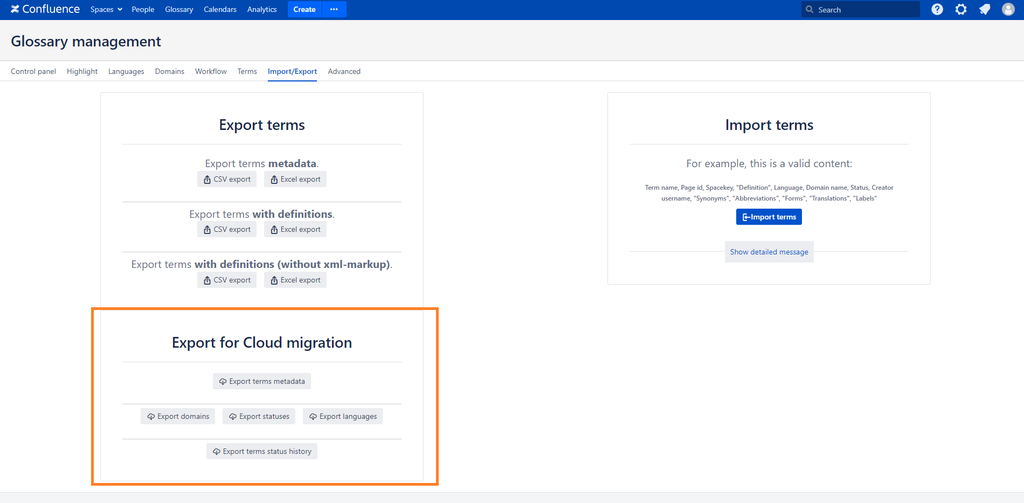
Do not edit these files. The domain, status and language files include their Data Center IDs. Cloud keeps those IDs, so your terms and any *Glossary list terms* macros filtered by status, domain or language still match after the import.
2.2. Step 2 — Migrate your spaces with CCMA
Run CCMA as usual, and:
– Include every space that contains term pages, including the spaces that hold translations.
– Keep the same space keys.
When CCMA reports the migration as complete, Confluence Cloud still needs to index the new pages for search. On large migrations this can take some time. Pages that are not indexed yet show up as *UNACHIEVABLE* in the import preview (see Step 3). Wait a while and run the import again.
2.3. Step 3 — Import Glossary data into Cloud
Go to Settings (gear icon) and select Glossary management under *Atlassian Marketplace*.
Import in this order. Terms refer to domains, statuses and languages by name, so those lists must exist first.
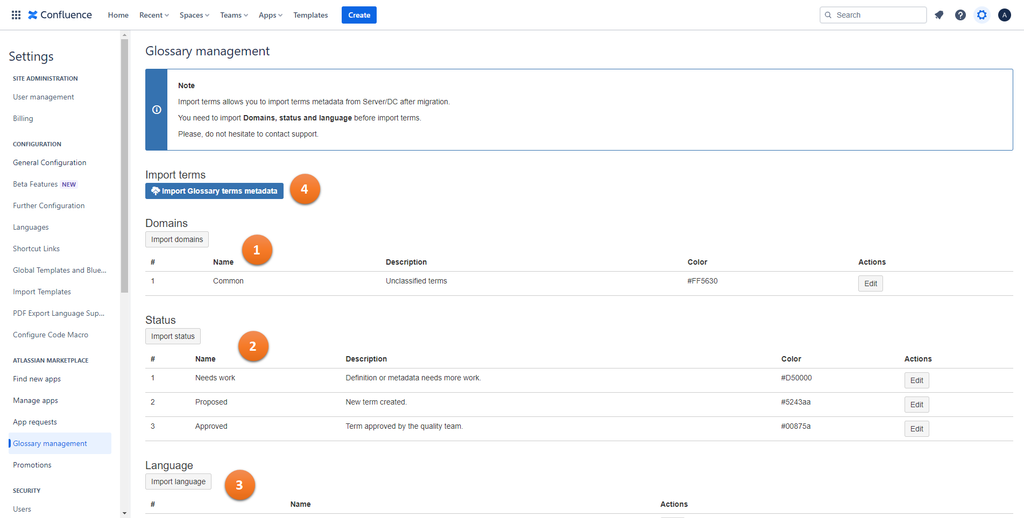
1. Domains — select Import domains, choose `cloud-glossary-domains.xls`, then confirm the import.
2. Status — select Import status, choose `cloud-glossary-status.xls`, then confirm.
3. Language — select Import language, choose `cloud-glossary-language.xls`, then confirm.
4. Terms — select Import Glossary terms metadata and choose `cloud-glossary-terms-metadata.xls`.
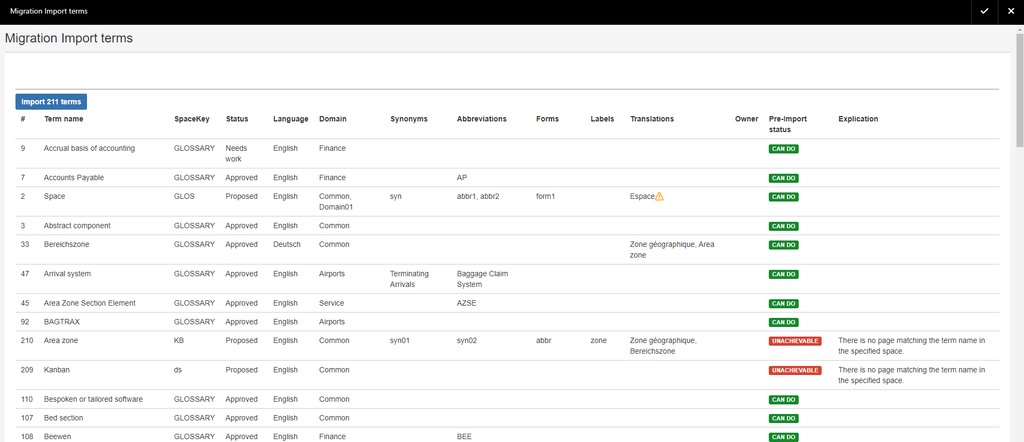
A preview lists every term with a Pre-Import status:
– CAN DO — the term will be imported.
– UNACHIEVABLE — the term will be skipped. The Explication column says why (see *Troubleshooting*).
A warning icon next to a translation means the translated term page was not found. The term is still imported, without that translation link.
Select Import *N* terms. Only the *CAN DO* rows are imported.
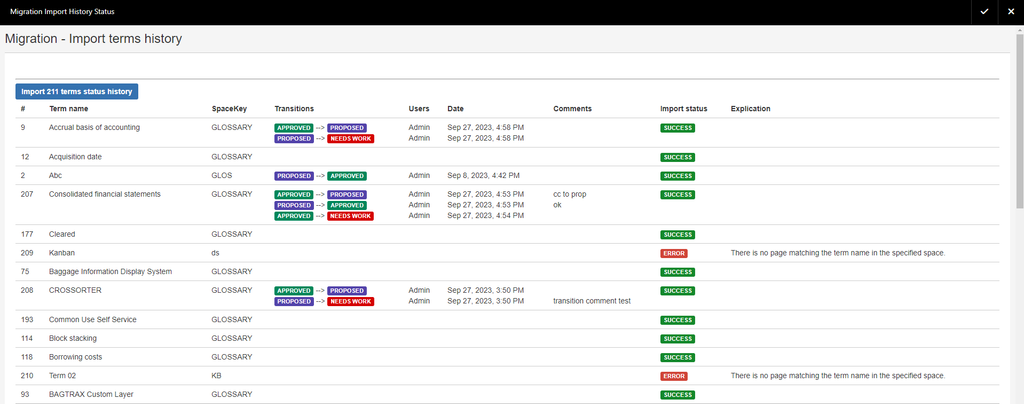
5. Status history — in the Terms workflow – Status history section, select Import status history and choose `cloud-glossary-term-status-history.xls`. Select Import *N* terms status history. Each row shows SUCCESS or ERROR with an explanation.
2.4. Step 4 — Check the result
– Open a few term pages. Glossary term info shows the right status, language, domains, synonyms, abbreviations and forms.
– Open a term that has translations. Glossary term translations lists them.
– Open a page with a Glossary list terms macro, especially one filtered by status, domain or language.
– Select Glossary in the header and check that your terms are listed.
3. After the migration: moving to the Forge version
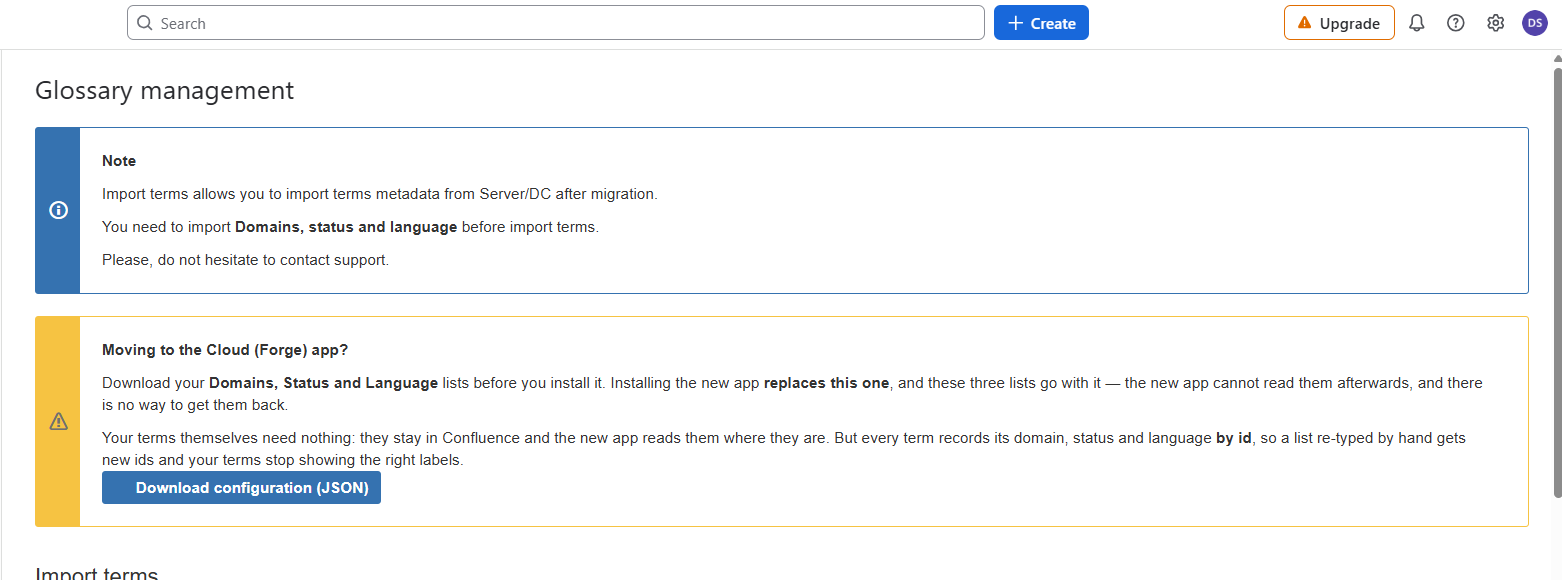
The Cloud Glossary management page shows a box titled Moving to the Cloud (Forge) app?. Before you install the Forge version of Glossary later, select Download configuration (JSON) in that box. Installing the Forge app replaces this one, and your domain, status and language lists are removed with it. Your terms stay in Confluence.
4. Need help?
Contact W Knowledge support:
- support@wknowledge.com