
Overview
The DC Data Migration tab provides tools for migrating data from your Data Center instance to the cloud instance.
Export files from DC instance
- Log in as Confluence Administrator
- Navigate to ⚙️ Settings → Classification levels
- Click the Cloud migration tab
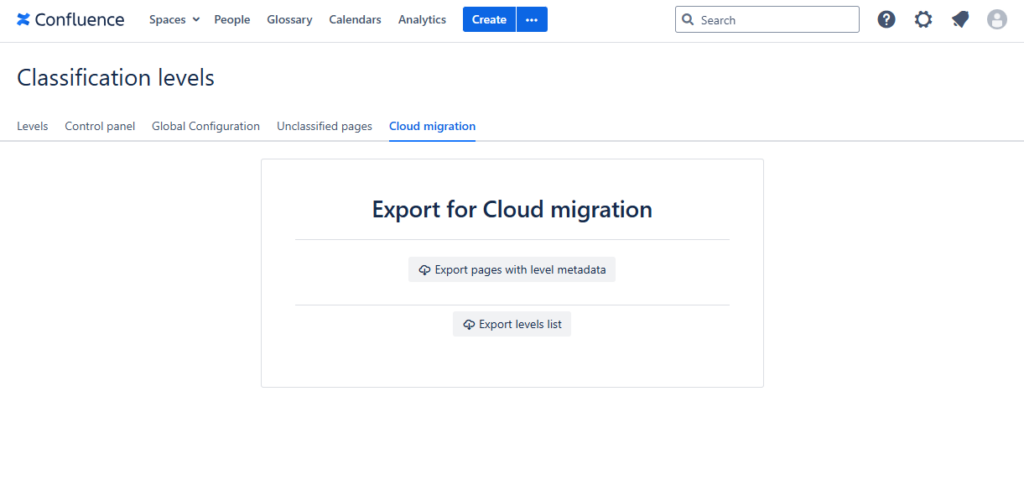
1. Export Levels List
Purpose: Exports the configuration of all classification levels defined in the system.
Button: 🔽 Export levels list
Output filename: levels-list.xls
Use case: Reference for recreating classification level structure in Confluence Cloud.
2. Export Pages with Level Metadata
Purpose: Exports all pages that have been classified with their associated level metadata and complete history.
Button: 🔽 Export pages with level metadata
Output filename: pages-level-metadata.xls
Use case: Complete audit trail and migration reference for all classified pages with full history tracking.
Import files in Cloud
1. Import Classification Levels from XLS/CSV
Purpose: Import classification levels from a previous Data Center instance and override existing levels in the app.
Import Process:
- Navigate to Settings → “Classification Levels Management” → “DC Data Migration” tab
- Click “Choose File” and select your Excel file
- Review the precautionary warnings
- Click “Import XLS Levels” to start the import
- Monitor the status messages for progress and results
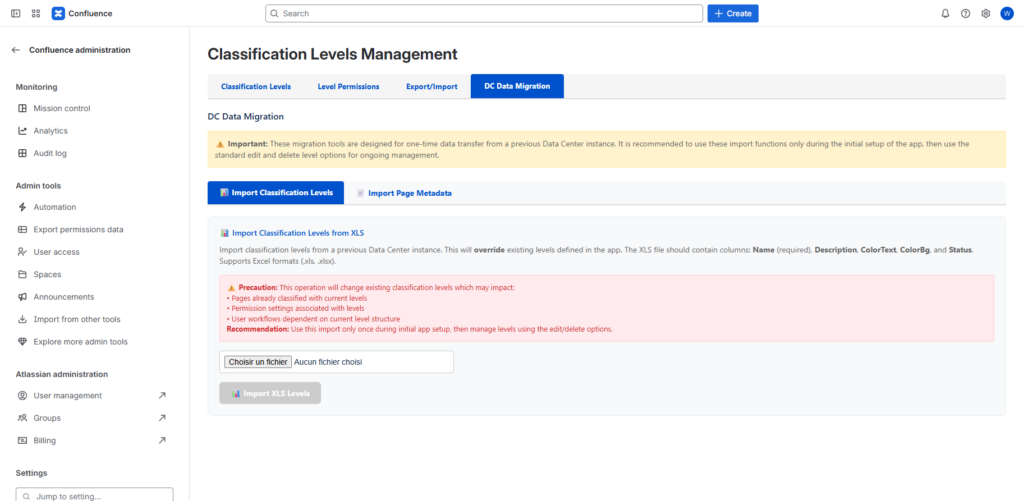
Required Columns:
- Name (required): The name of the classification level
- Description: Description of the classification level
- ColorText: Text color in hex format (e.g., #ffffff)
- ColorBg: Background color in hex format (e.g., #0052cc)
- Status: Either “enabled” or “disabled”
Important Notes:
- ⚠️ This operation will override all existing classification levels
- It may impact pages already classified with current levels
- Permission settings associated with levels may be affected
- User workflows dependent on current level structure may be disrupted
Recommendation:
- Use this import function only once during initial app setup
- After initial setup, use the standard edit/delete level options for ongoing management
- Always export current data as backup before importing
2. Import Page Classification Metadata
Purpose: Import classification metadata for pages that were already classified in a previous Data Center instance.
Import Process:
- Prepare Excel file with columns: Space Key, Page Title, Level ID, Level Name
- Optionally include classification history entries
- Upload via “DC Data Migration” tab
- System matches pages and imports metadata
- Restrictions are automatically applied
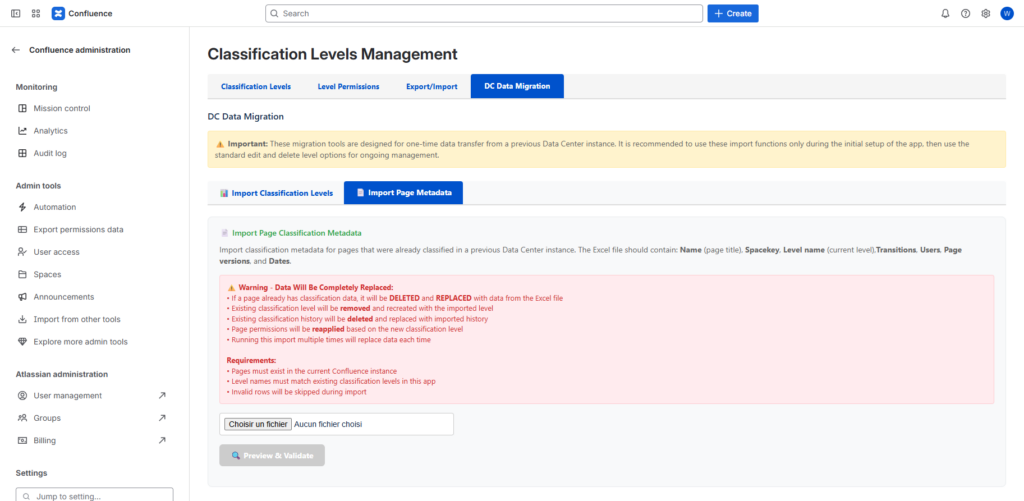
How It Works:
- Searches for pages by Space Key and Page Title
- Imports classification level and history for each page
- Applies appropriate restrictions based on level permissions
- Preserves historical classification data including dates and user accounts