
Overview
The Classification Levels app is a Confluence Forge application that provides comprehensive data classification and access control capabilities, allowing organizations to classify pages with security levels and automatically apply appropriate access restrictions.
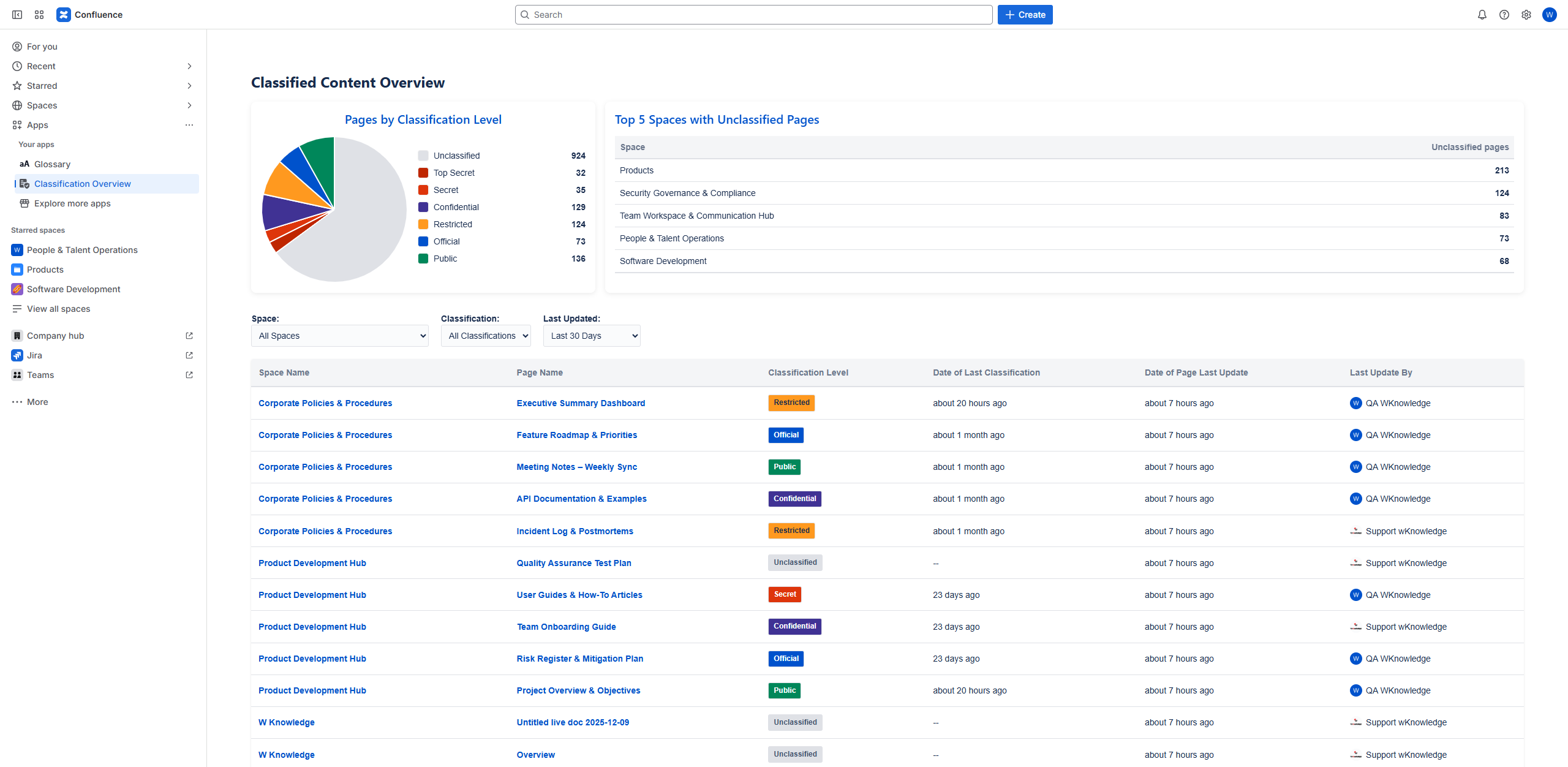
Key Features
- Visual Indicators: Colored badges show classification levels at a glance
- Automatic Restrictions: Access permissions applied automatically based on classification
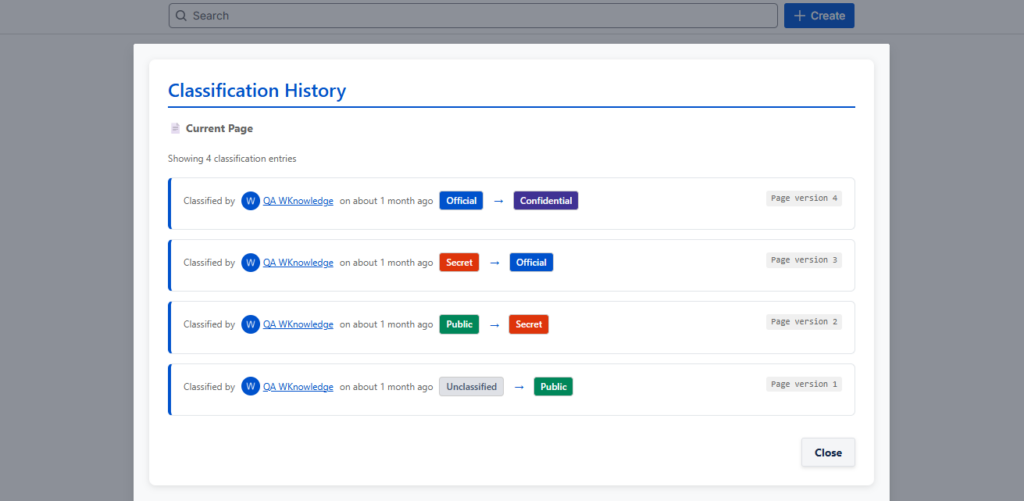
- Audit Trail: Complete history of all classification changes
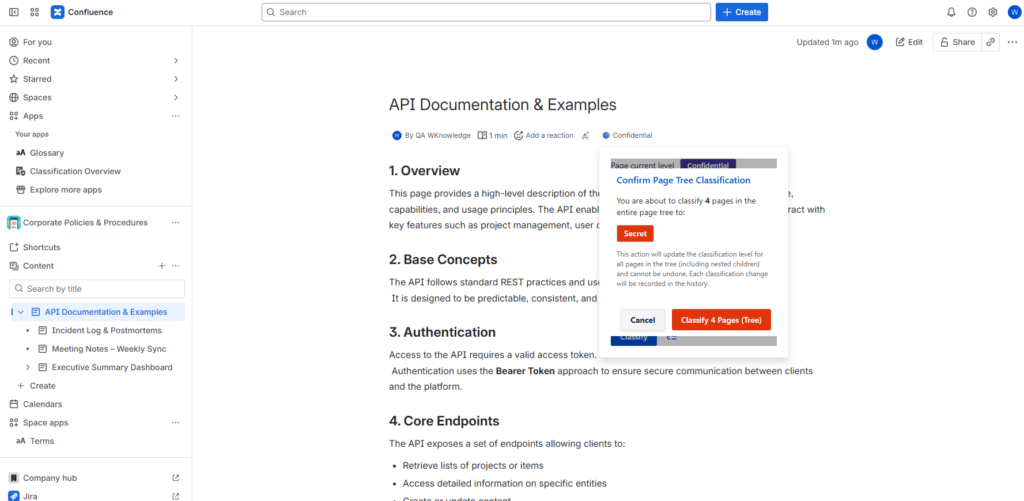
- Bulk Operations: Classify multiple pages simultaneously (Page tree)
- Group Integration: Uses existing Confluence user groups for access control
Initial Configuration
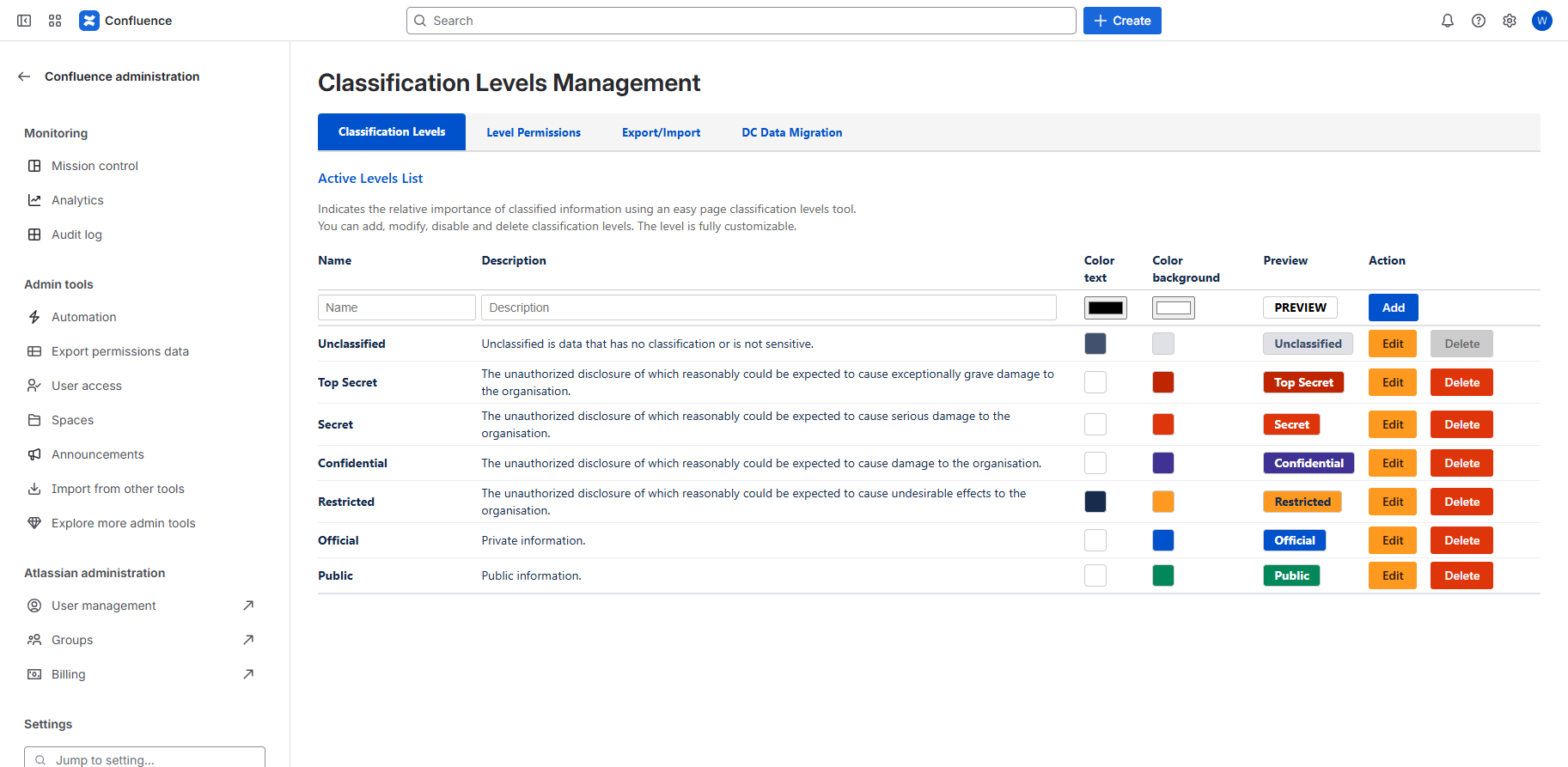
- Go to Confluence Settings → Apps → Classification Levels Management
- Review the default classification levels (Unclassified, Top Secret, Secret, Confidential, Restricted, Official, Public)
- You can add, modify, disable and delete classification levels. The level is fully customizable.
Quick Start for Users
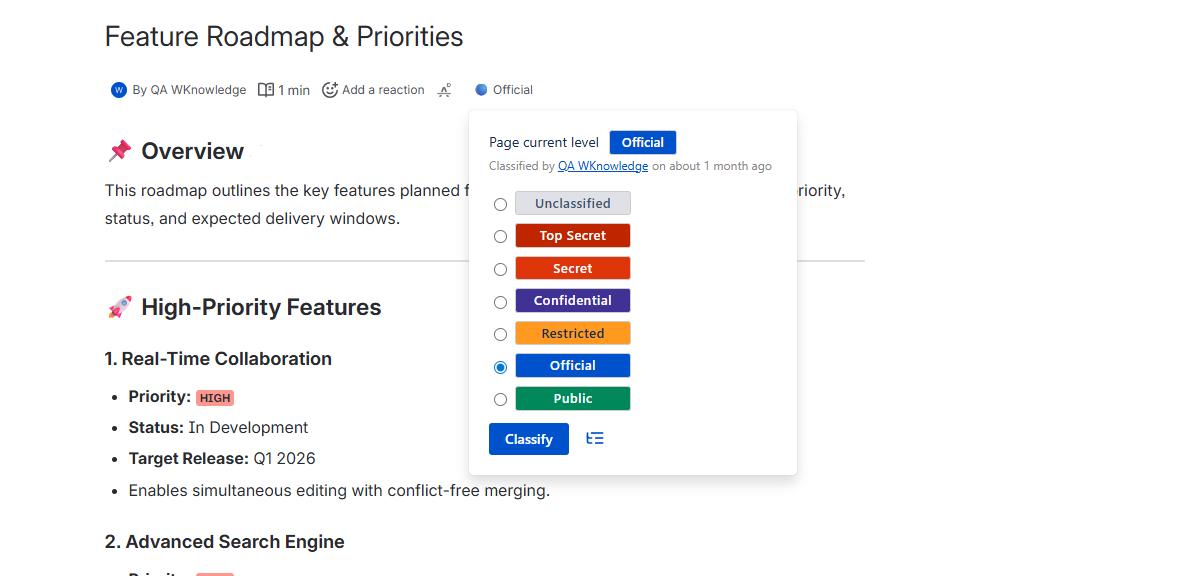
- Users can classify pages by clicking the classification indicator next to page titles
- Classifications automatically apply access restrictions based on configured groups
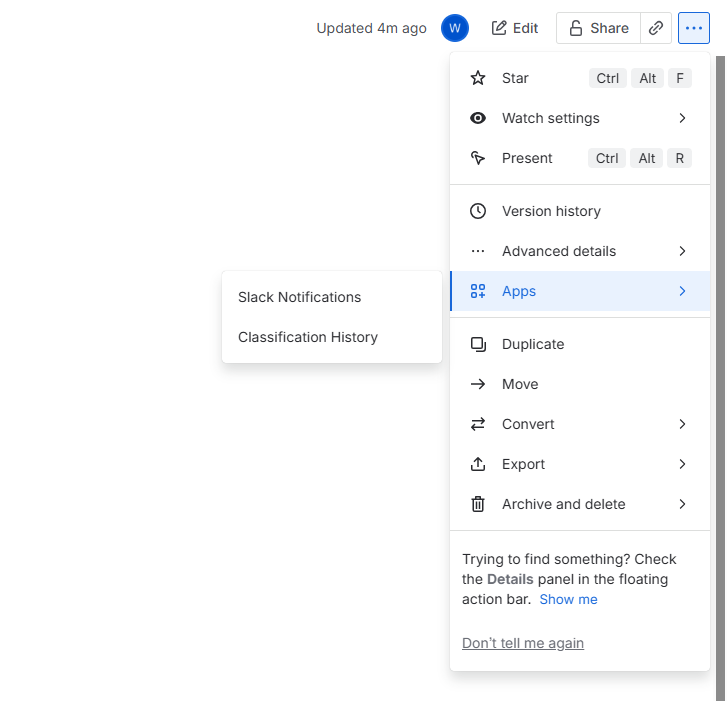
- View classification history through the page actions menu
Classify a page
User must have page edit permissions to classify a page.
- Navigate to any Confluence page
- Click the classification indicator (colored circle) next to the page title
- Select the appropriate classification level from the dropdown
- Click “Classify”
View page classification history
Use the “Classification History” action from the page menu to see all classification changes over time.
Classify page tree
Security Notes
- All classification data is stored securely within Confluence
- Changes are logged for audit and compliance purposes
- Existing page permissions are preserved and enhanced
- The app integrates with Confluence’s native security model